Plan before execution
Buy or sell planning, calculated lots, stop distance and target controls in one panel.
 OMEGA TRADING Free Tools
FREE MT5 UTILITY · V1.21 · Trade Planning and Control
 Omega Gold Risk Guard
A free MT5 utility for planning XAUUSD risk, checking daily discipline and controlling positions from an on-chart panel.
No payment or sign-up. Compiled EX5 + quick-start guide.
Desktop MT5 on a PC or Windows VPS.
Start on demo. Review your risk and limits before execution. Its execution controls can place and manage real orders.
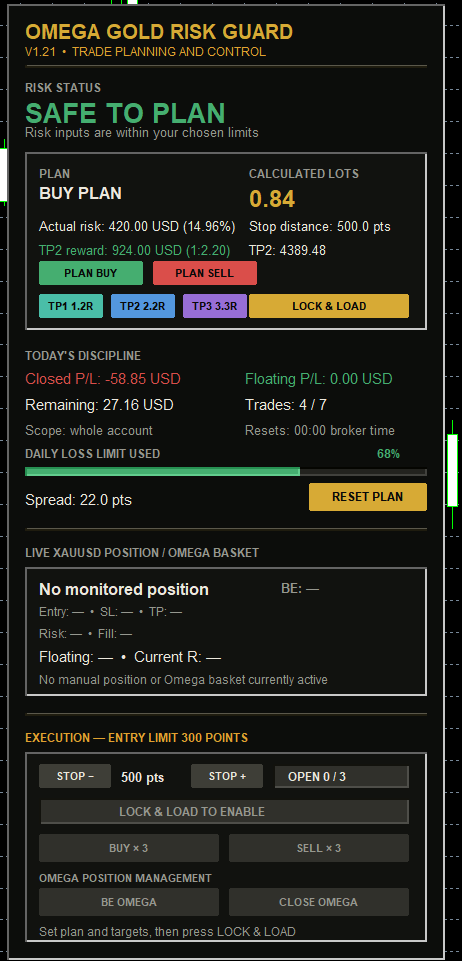
Buy or sell planning, calculated lots, stop distance and target controls in one panel.
See closed and floating P/L, trade count, remaining allowance and the displayed risk status.
Check the monitored position or basket before using break-even and close controls.
EXPLORE THE WORKSPACE
Open any image for a closer look. Illustrative interface views; displayed risk settings are not recommendations.
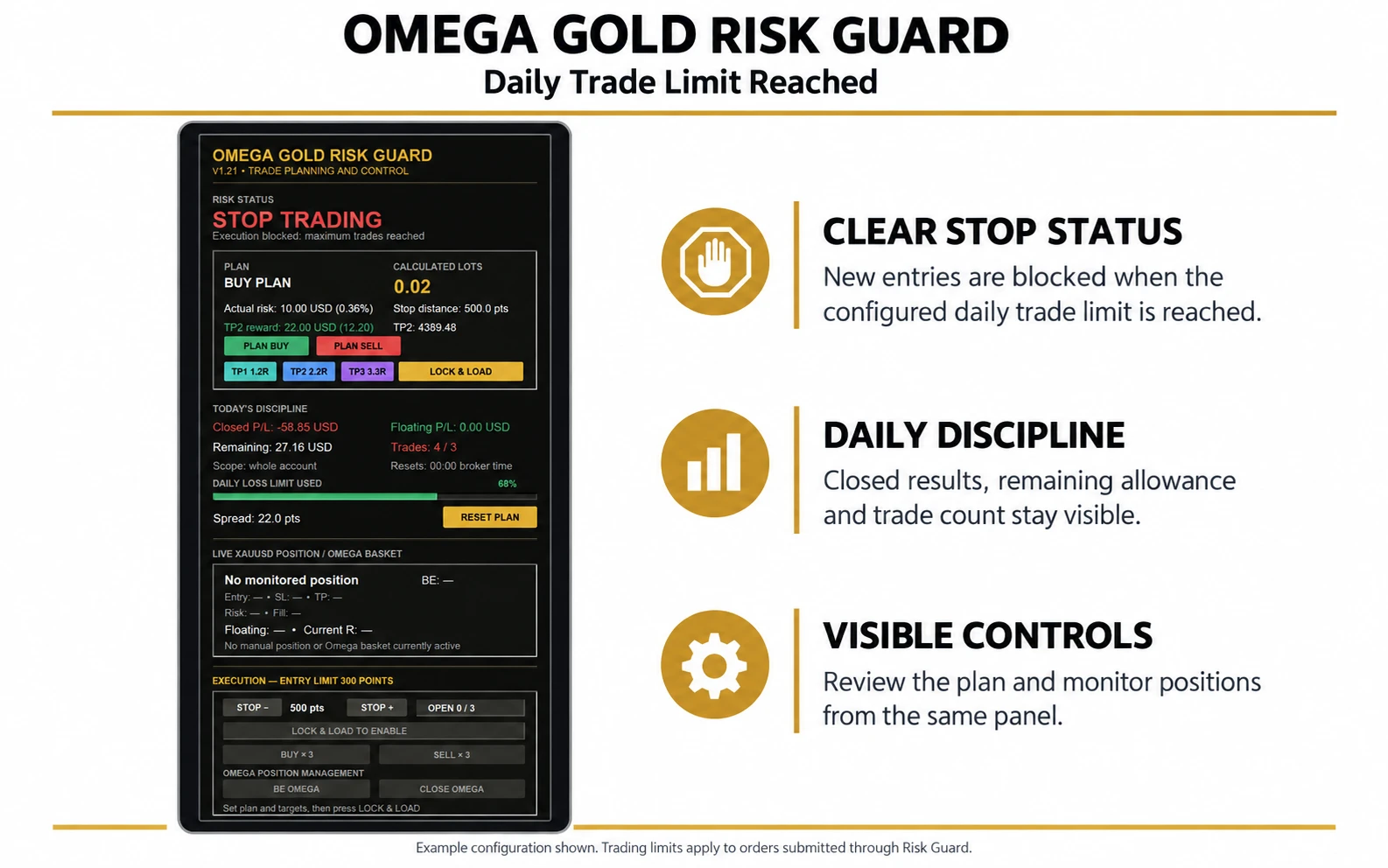
See when new Risk Guard entries are blocked by your configured daily trade count.
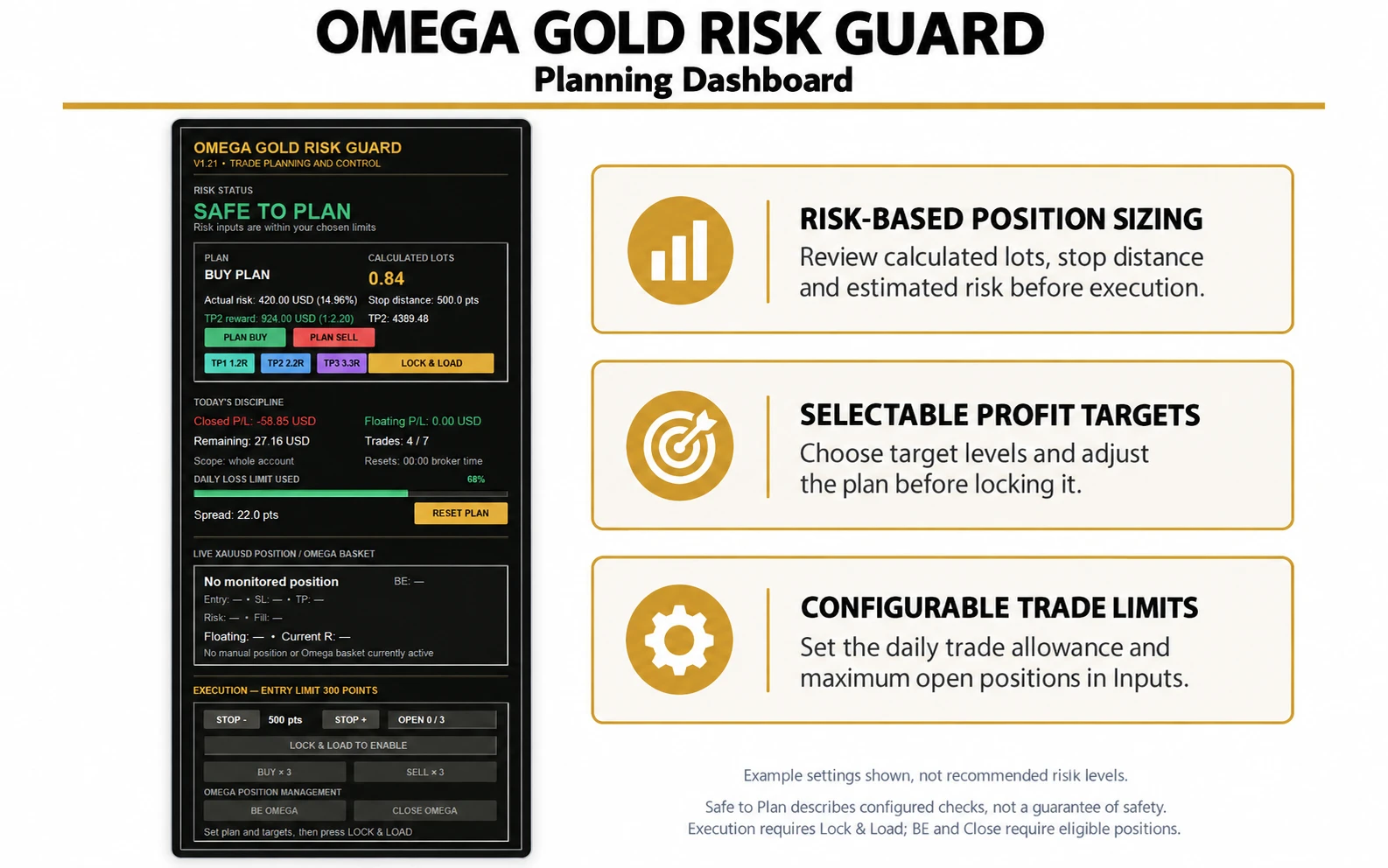
Review calculated lots, stop distance and selected targets before locking the plan.
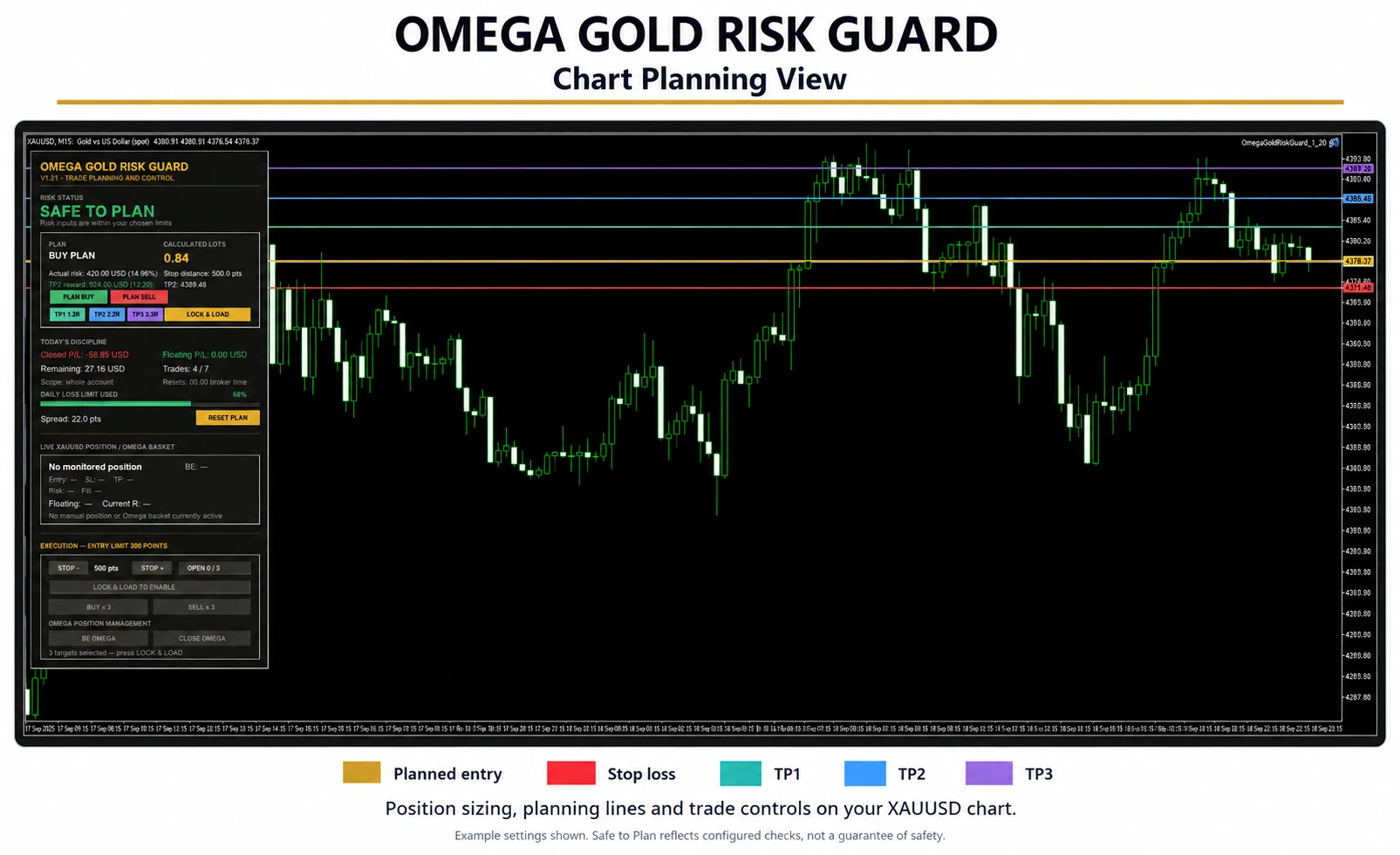
View the planned entry, stop and three target levels alongside the gold chart.
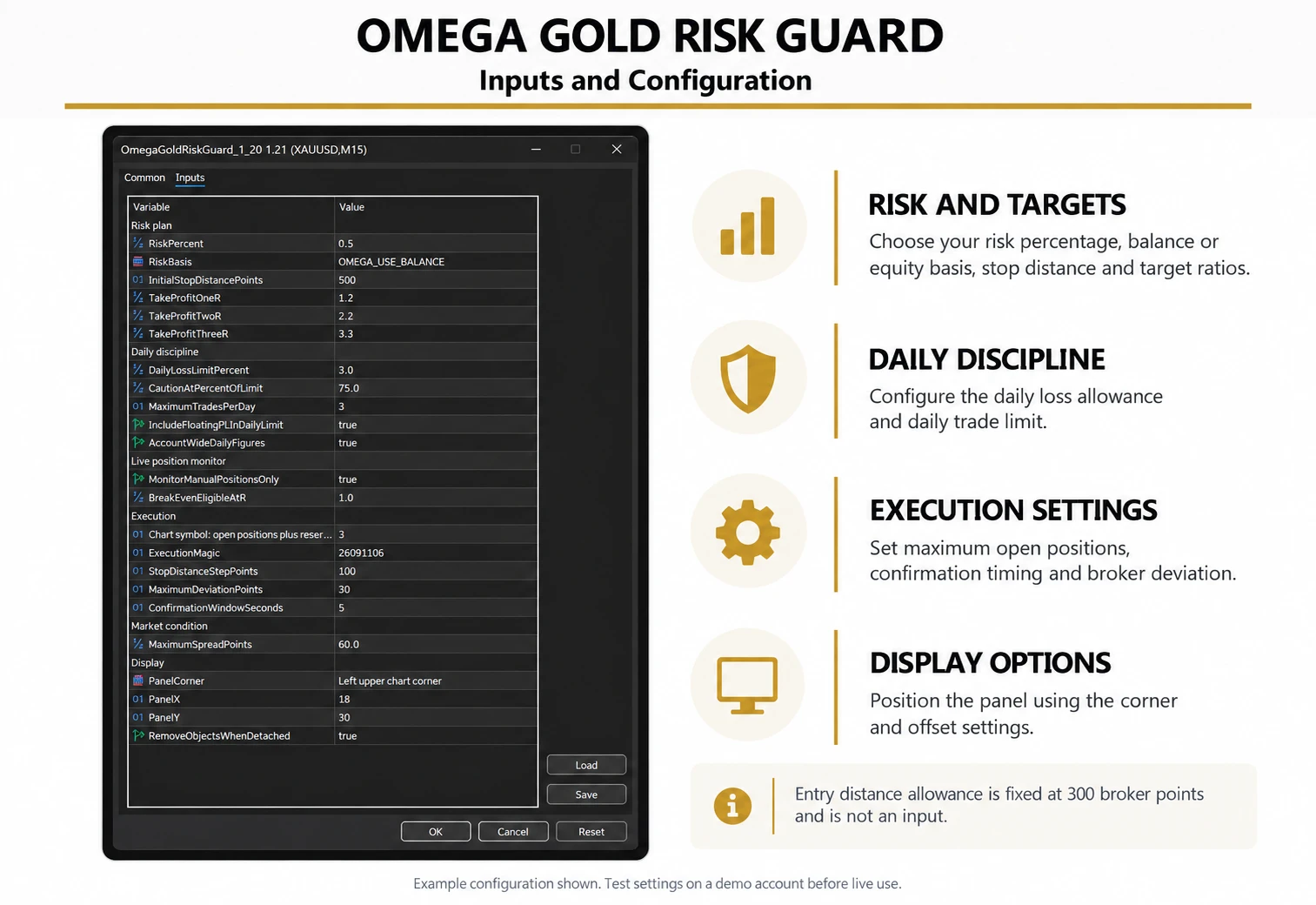
Configure risk, daily limits, maximum open trades and execution settings.
GET SET UP
Use these steps on the computer where MT5 runs.
Download the free ZIP and extract it. It contains Omega_Gold_Risk_Guard_V1.21.ex5 and this quick-start guide. The EX5 is already compiled; you do not need MetaEditor.
In desktop MetaTrader 5, choose File → Open Data Folder. Open MQL5 → Experts and copy the EX5 into that folder. Refresh Expert Advisors in Navigator, or restart MT5.
Open your broker’s XAUUSD chart and attach Omega Gold Risk Guard from Navigator → Expert Advisors. Use a separate chart if Omega Gold Pro or another EA is already attached: MT5 allows one EA per chart.
Check the available risk, loss-limit, trade-limit and account-scope settings before proceeding. Do not copy the screenshot’s lot size or stop distance as a recommendation. For a cent account, verify the currency and money units against your broker’s account balance.
To use trade controls, allow algorithmic trading in the EA settings and enable Algo Trading in MT5. The panel can place and manage real orders when connected to a live account. Begin on demo and check the Experts and Journal tabs if a control is unavailable.
MT5 platform setup: official MetaTrader 5 Expert Advisor guide.
YOUR FIRST DEMO PLAN
Learn the controls before placing a live order.
Read the status and any blocking reason first. The example shows STOP TRADING because the maximum trade count was reached. Check Today’s Discipline, the monitored scope and the reset time shown by your own panel.
Select PLAN BUY or PLAN SELL. Review the calculated lot size, actual cash risk and percentage. Planning buttons are separate from the execution controls lower down.
Use STOP − / STOP + to adjust the displayed stop distance and review the recalculated plan. The panel labels the distance in points, not pips. Its target buttons show TP1 1.2R, TP2 2.2R and TP3 3.3R. R means the planned reward relative to the planned risk; check the displayed prices and amounts.
When the direction, stop, targets and calculated lots match your intention, press LOCK & LOAD and follow the panel’s enable or confirmation prompt. Recheck the loaded details before any execution click. Click the matching execution button twice within the confirmation window (five seconds by default).
BUY ×3 and SELL ×3 are execution controls, not planning buttons. Test the resulting tickets, lot allocation, combined risk and target behaviour on demo before using them live. Check MT5’s Trade tab for what the broker actually accepted; a click alone does not confirm a fill.
Check the Live XAUUSD Position / Omega Basket section before using BE OMEGA or CLOSE OMEGA. Confirm the intended position or basket is shown, then verify the resulting stop or closure in MT5. If the panel says No monitored position, there is nothing shown there to manage.
BEFORE YOU USE IT
A fixed 300-broker-point allowance checks the executable quote against the locked entry. MaximumOpenTrades lets you set the simultaneous position limit for the chart symbol; pending orders reserve slots and every target leg uses one slot. This allowance is separate from broker deviation and cannot guarantee a fill price.
Read the reason under the status. Review the relevant limit and scope in the panel and inputs. Do not treat RESET PLAN as a way to reset daily limits or bypass a block.
Do not assume so. The displayed discipline scope and the position-management scope are different things to check. Do not rely on this utility to stop orders placed elsewhere or guarantee a maximum loss.
LOCK & LOAD loads the calculated total volume. That total is split across selected targets, with each leg meeting the broker minimum. Multiple target positions require a hedging account; netting accounts use one target and require no existing symbol exposure.
Check the risk-status message, whether the plan is locked, whether a position is monitored, and MT5’s trading permissions. The Experts and Journal tabs can show broker rejections or other execution errors.
Install and run the EX5 in desktop MT5 on your PC or a Windows VPS. You can download the package on your phone and transfer it to that computer.
This is a risk-planning and position-control utility. It does not turn a trade plan into a profitable strategy. You choose the entry and direction. Verify behaviour on demo before live use.
The setup guide is included in the ZIP so you can keep it beside MT5.
OMEGA TRADING